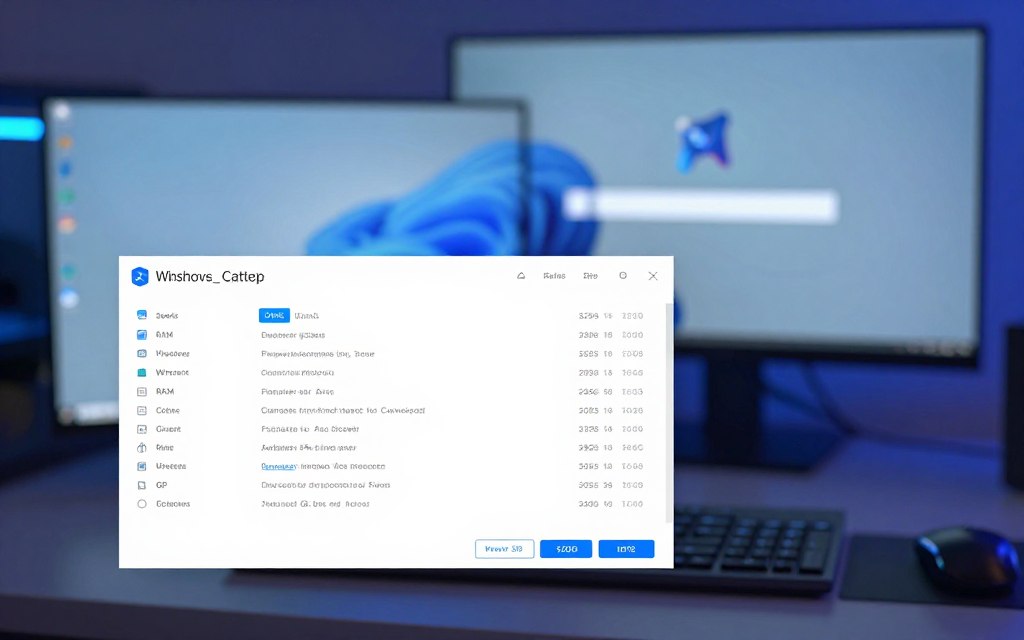

Before installing a game or calling support, you may need to know what computer hardware you have. PC specs are the key technical details of a computer, including its processor, memory, storage, graphics and operating system. Windows has several built-in ways to find basic information, identify components and check live performance.
The steps here focus on Windows, including older versions with different menus. Start with a simple screen, then use more detailed tools only when you need them.
Key Takeaways
- Use Settings to check basic details in Windows 10 and 11.
- Use System Properties and Device Manager in Windows 7.
- Device Manager lists installed hardware by category.
- Task Manager shows live CPU, RAM, disk and GPU activity.
- System Information and DirectX Diagnostic Tool show deeper details.
- Save your model and main specs before contacting support.
How Do I See What Hardware Is in My Computer?
Settings at System > About is the quickest starting point in Windows 10 and 11. It shows details such as your CPU, installed RAM and system type.
Use Settings for a quick baseline, then open Device Manager when you need component names. The route differs on Windows 7, but its built-in system screen still shows key details.
Start with Settings on Windows 10 or 11. Open Device Manager when you need a component-by-component view.
Windows 11 and Windows 10: Start in Settings
Choose Start > Settings > System > About. This page lists the device name, processor, installed RAM, device ID, system type and Windows version.
If you ask how do i see what hardware is in my computer in Windows 11, follow that route. The same Settings path answers how do i see what hardware is in my computer in Windows 10.
The system type tells you whether Windows is 32-bit or 64-bit. 32-bit Windows is generally limited to using about 4 GB of RAM. The installed RAM line shows how much memory is in the computer, though some may be reserved for hardware.
Windows 7: Check System Properties and Device Manager
Right-click Computer and choose Properties. System Properties shows the processor, installed memory and operating system.
For how do i see what hardware is in my computer in Windows 7, this is the fastest basic check. If Computer is not on the desktop, open Start and find it in the menu.
When the menu layout differs, type Settings or Device Manager in the Windows search bar. Open the matching result rather than guessing through menus.
| Windows version | Route | Useful details |
|---|---|---|
| Windows 11 | Settings > System > About | Device name, CPU, installed RAM, system type |
| Windows 10 | Settings > System > About | Device name, CPU, installed RAM, Windows version |
| Windows 7 | Right-click Computer > Properties | Processor, installed memory, operating system |
For the names of individual parts, open Device Manager next.
Which Computer Components Can Windows Show?
Your CPU, RAM, storage and graphics adapter are four useful starting points when identifying computer parts. Device Manager lists many installed devices, but it does not show every physical part inside a computer.
Expand its categories to see device names and open a device’s properties for more details or error information. This gives you a practical list of hardware components that Windows can detect.

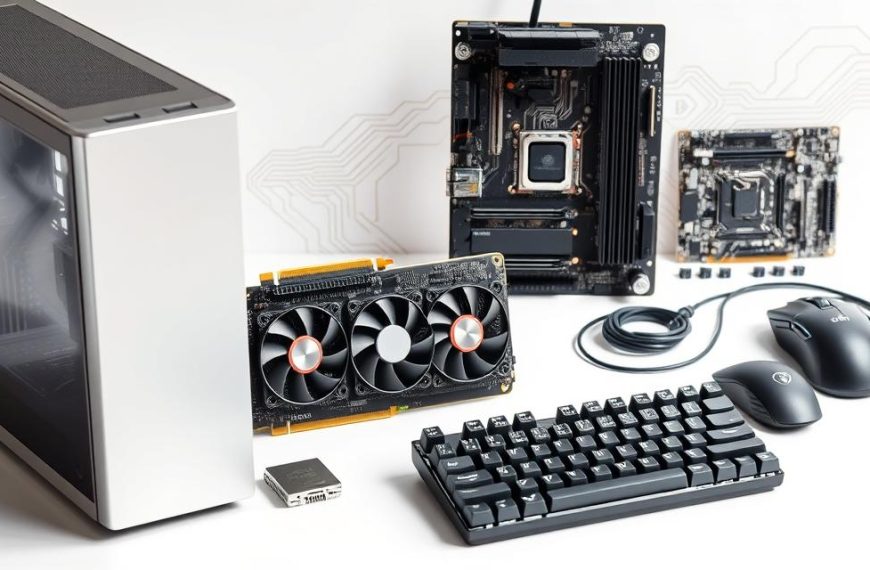
A common list of hardware components of a computer includes these ten parts:
- Motherboard
- CPU
- RAM
- Storage drive
- GPU
- Power supply
- Cooling system
- Case
- Network adapter
- Sound card
This list of hardware components of a computer is not complete for every model. Laptops may use integrated graphics and combine or omit parts that desktop PCs have separately.
Open Device Manager from Start or type its name in the search bar. Expand Display adapters, Processors, Disk drives, Monitors or Network adapters to inspect the listed devices.
To check whether a system has a graphics card, look under Display adapters. A listed graphics adapter confirms Windows detects graphics hardware, though some systems use graphics built into the CPU.
For how to check the graphics card in Windows 7, open Device Manager and expand Display adapters. Double-click a device to view its properties and any reported error information.
When you want to know how components are working right now, check Task Manager.
How Can Task Manager Show Live Hardware Performance?
A computer may slow down only when several programs are running. Task Manager can show live activity for the CPU, RAM, disk and GPU while the slowdown happens.
Press Ctrl + Shift + Esc, then open Task Manager’s Performance tab. Select the CPU, Memory, Disk or GPU panel to see current use, not just the installed model.
For example, check Memory while your browser, game and video call are open. If memory use is high at that moment, the reading can help explain why switching between apps feels slow.
The Processes tab shows which apps and background tasks are using system resources. Sort the list by CPU, Memory, Disk or GPU to spot a busy task.
Resource Monitor offers a more detailed view of CPU, memory, disk and network use. Search for Resource Monitor in Windows to open it.
Task Manager may show logical processors, also called threads, in its CPU details. A thread count does not always match the number of physical CPU cores. A multithreaded CPU can run more than one thread on each core.
These readings describe current performance, not the full system model or BIOS details. For those, use System Information or the DirectX Diagnostic Tool.
Which Tools Show Deeper CPU and Graphics Details?
A basic summary may not show the technical details you need to troubleshoot a system. System Information and the DirectX Diagnostic Tool provide more specific hardware, BIOS and display facts.
Use System Information for the machine and hardware, and dxdiag for graphics and display-driver details. Both tools open from the Run dialog.
System Information: Open msinfo32
Press Windows key + R, type msinfo32, and press Enter. System Information opens with a system summary and hardware resources.
The system summary may show the system model, BIOS version, motherboard details, drivers and virtualization information. Expand Hardware Resources for more technical entries when troubleshooting.
DirectX Diagnostic Tool: Open dxdiag
Press Windows key + R, type dxdiag, and press Enter. The System tab shows system details, while Display shows graphics and driver information.
These tools also help if you need to know how to find computer specs in Windows 7. For how to check laptop specs in Windows 7, System Properties and Device Manager are useful starting points.
| Tool | How to open | Best for |
|---|---|---|
| System Information | Run msinfo32 | System model, BIOS, motherboard and hardware resources |
| DirectX Diagnostic Tool | Run dxdiag | Graphics and display-driver details |
| Device Manager | Search for Device Manager | Installed devices and device properties |
For the exact identity of the machine, check its model and serial number.
How Can I Find My Computer Model and Serial Number?
When support asks for a model or serial number, System Information and PowerShell can help identify your computer. The model points to a product type, while the serial number identifies an individual device.
A serial number is a manufacturer-assigned identifier for one computer, often used for support and warranty records. In System Information, look for system manufacturer and system model.
To check for a serial number, open PowerShell from Start or Windows search. Enter Get-CimInstance Win32_BIOS | Select-Object -ExpandProperty SerialNumber and press Enter.
Windows displays the BIOS serial number when the computer exposes one. A blank or generic result may mean the system does not report a usable number through this command.
In that case, check the manufacturer’s label on the computer. For a laptop, look on its underside or near its ports; desktop labels may be on the case.
The device name in Settings is different from the serial number. The name helps identify the computer on a network, while the serial number links it to the maker’s records.
Keep the model and serial number with your notes, then use the details to check compatibility or choose a troubleshooting step.
How Do I Use These Specs for Compatibility or Troubleshooting?
Before installing a game, compare its minimum system requirements with your computer’s specs. Check the exact components, not just the computer’s name or age.
A model or component name alone does not prove an upgrade will fit or work. The computer’s design and supported parts also matter.
Do not choose an upgrade from a model name alone. Check the computer’s design and supported parts first.
Use these four checks to guide your next step:
- Compare the CPU, RAM, GPU and storage with an app’s stated requirements.
- Identify the exact component before considering an upgrade.
- Use the model and Windows version when looking for a compatible driver.
- Check Task Manager activity before blaming a component for a slowdown.
A device model does not show every upgrade limit. If you are planning a gaming build, check the CPU, GPU, RAM, motherboard, power supply and case for fit and support. This budget PC upgrade guide covers those checks.
To update a graphics driver in Windows 7, identify the card under Device Manager’s Display adapters entry. Then use instructions from the computer maker or graphics-card maker to find a driver for that exact model and Windows version.
For a manual graphics-driver update, get the matching driver from the computer or graphics-card maker. Follow its installation instructions rather than choosing a driver for a similar card.
Windows 7 has no universal graphics-driver reset shortcut. Restart the PC or follow the manufacturer’s steps to reinstall the matching driver.
Save the key specs before contacting support or making a compatibility decision.
Conclusion
A quick system summary is usually enough to begin. Settings gives you a baseline, while Device Manager or the deeper Windows utilities can answer more specific questions.
Record your CPU, installed RAM, system type, storage and graphics-card model in a note. Keep those details handy for your next compatibility check or support conversation.

 By
By