
How to Make Your PC into a Gaming PC Cheap: The Ultimate Budget Upgrade Guide for 2026
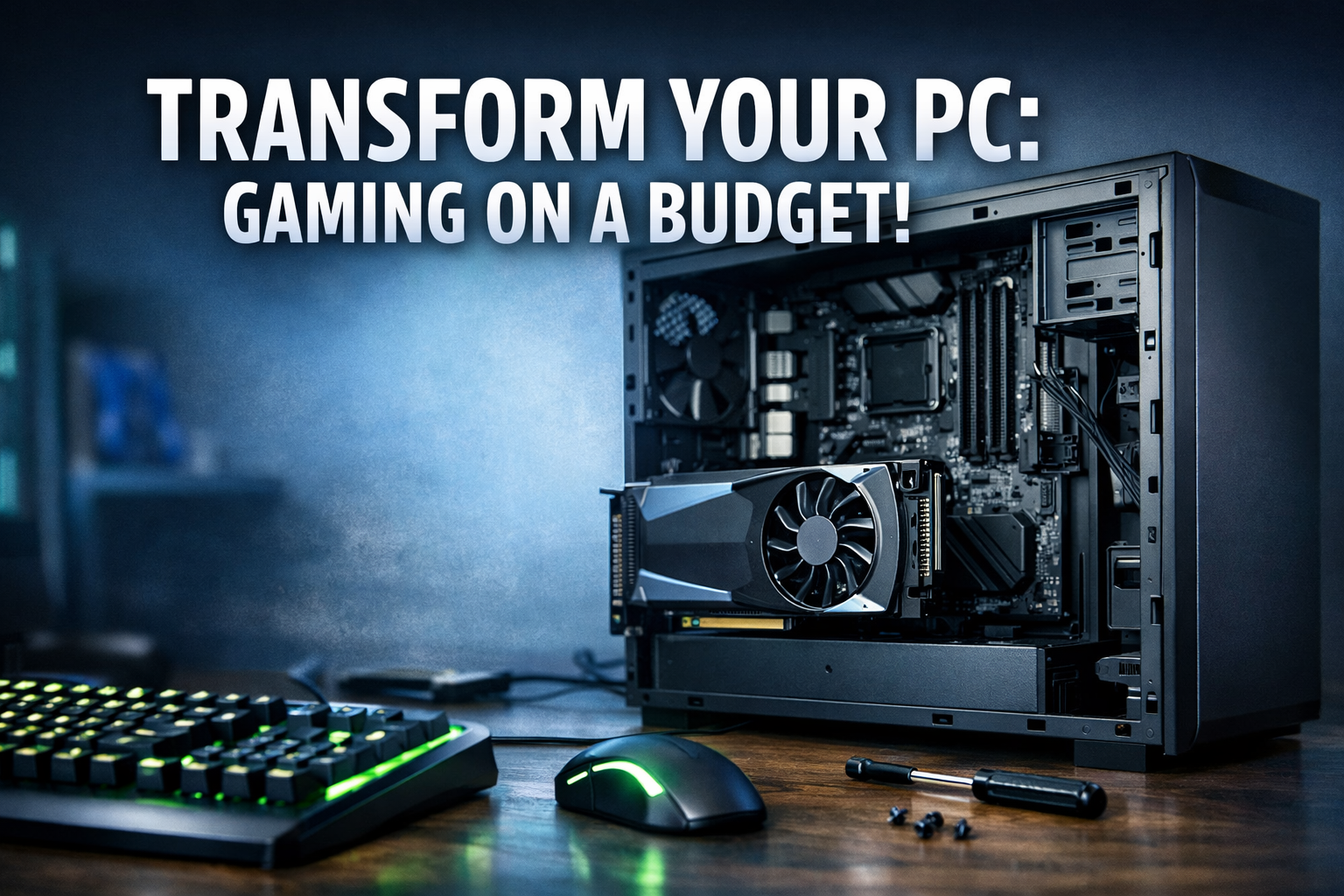
Are you yearning to dive into the latest gaming titles but balking at the hefty price tag of a brand-new gaming rig? You’re not alone. Many PC users dream of transforming their everyday computer into a powerhouse capable of running demanding games without emptying their wallets. The good news is that it’s entirely possible to learn how to make your PC into a gaming PC cheap by strategically upgrading key components. This comprehensive guide will walk you through the essential steps, helping you unlock a world of immersive gaming experiences on a budget in 2026.
This article delves into the specific hardware upgrades, software optimizations, and practical tips that can significantly boost your PC’s gaming capabilities without requiring a complete system overhaul. By focusing on smart, cost-effective choices, you can achieve impressive performance gains and enjoy your favorite games.
Key Takeaways
- Graphics Card is King: The GPU is the single most important upgrade for gaming performance. Prioritize finding the best budget-friendly card compatible with your system.
- RAM and Storage Matter: Ensure you have at least 16GB of RAM and an SSD for faster loading times and smoother gameplay. These are relatively inexpensive upgrades.
- Check Compatibility First: Before buying any parts, thoroughly research compatibility with your existing motherboard, power supply, and case.
- Optimize Software and Settings: Even with upgrades, proper driver updates, game settings adjustments, and background process management are crucial for peak performance.
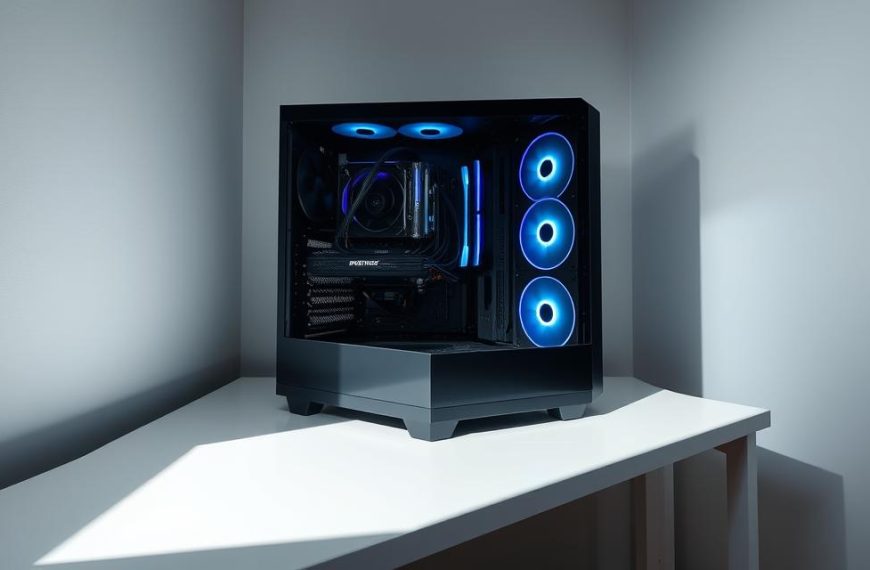
- Don’t Forget Cooling: Enhanced components generate more heat. Investing in better cooling can prevent throttling and extend the lifespan of your hardware.
Understanding Your Current PC: The Foundation of Your Gaming Journey
Before you embark on the quest of how to make your PC into a gaming PC cheap, you must first understand what you’re working with. Assessing your current PC’s specifications will provide a clear roadmap for potential upgrades and help you avoid incompatible purchases. Think of this as your pre-flight check before liftoff.
Identifying Key Components and Specifications
Your PC’s core components dictate its current capabilities and future upgrade potential. Here’s what to look for:
- CPU (Central Processing Unit): The brain of your computer. While a good CPU is important, for budget gaming, a decent mid-range CPU is often sufficient if paired with a strong GPU. Note down its model (e.g., Intel Core i5-8400, AMD Ryzen 5 2600).
- GPU (Graphics Processing Unit): This is the most critical component for gaming. Many standard PCs have integrated graphics (part of the CPU) which are not suitable for modern gaming. If you have a dedicated GPU, note its model.
- RAM (Random Access Memory): Determines how much data your PC can process at once. For gaming, 8GB is a minimum, but 16GB is highly recommended for a smooth experience in 2026. Check the type (DDR3, DDR4) and speed (MHz). Learn more about how PC memory impacts gaming performance.
- Storage: Your hard drive or SSD. SSDs (Solid State Drives) are vastly superior for gaming due to their speed. Note if you have an HDD, SSD, or both, and their capacities.
- Motherboard: This connects all your components. Its chipset determines CPU compatibility, RAM type, and the number/type of expansion slots (especially PCIe for the GPU). Find its model number.
- PSU (Power Supply Unit): Provides power to all components. Gaming GPUs require more power, so you’ll need to know your PSU’s wattage (e.g., 450W, 600W) and available connectors.
- Case: The physical enclosure. Ensure there’s enough space for a new graphics card and good airflow.
To find these specifications, you can use built-in Windows tools like Task Manager (Performance tab), System Information (msinfo32), or third-party tools like CPU-Z or Speccy. You can also learn how to check your computer’s hardware health.
Assessing Compatibility and Limitations
Understanding your current setup allows you to identify bottlenecks and ensure new parts will work seamlessly.
- CPU Socket Type: Your motherboard has a specific socket type (e.g., LGA 1151, AM4). This limits which CPUs you can upgrade to without replacing the motherboard.
- PCIe Slots: Your GPU will connect to a PCIe x16 slot. Most modern motherboards have at least one, but confirm its version (e.g., PCIe 3.0, PCIe 4.0).
- RAM Slots and Type: Confirm the number of RAM slots and the DDR generation. Mixing DDR3 and DDR4, for instance, is not possible.
- PSU Connectors: Dedicated graphics cards often require specific PCIe power connectors (6-pin, 8-pin). Check if your PSU has these.
- Physical Space: A large, powerful graphics card might not fit in a small form factor PC case. Measure carefully!
“A thorough initial assessment saves money and frustration. Know your PC’s limits before you even think about buying a single component.”
The Most Crucial Upgrade: Your Graphics Card (GPU)
When considering how to make your PC into a gaming PC cheap, the graphics card (GPU) is, without a doubt, the single most impactful upgrade. It’s responsible for rendering all the visuals you see in games, and a weak GPU is the primary reason most standard PCs can’t handle modern titles.
Choosing a Budget-Friendly Graphics Card
Finding a powerful GPU on a tight budget requires smart shopping and realistic expectations. In 2026, the market for graphics cards continues to evolve, offering excellent value in the mid-range and used segments.
- New Entry-Level/Mid-Range Cards: Manufacturers like NVIDIA (e.g., RTX 3050, 4060) and AMD (e.g., RX 6600, 7600) offer cards designed for 1080p gaming at reasonable prices. These are often the best starting point for a true budget build.
- Used Market Value: The second-hand market (eBay, Facebook Marketplace, local classifieds) can be a goldmine for older, but still very capable, GPUs. Cards like the NVIDIA GTX 1070/1080, RTX 2060/2070, or AMD RX 5700 XT, RX 580, and RX 6700 XT can offer incredible performance for their price in 2026. Exercise caution, verify sellers, and ideally test the card before purchasing.
- Compatibility Check: Always double-check that your chosen GPU is compatible with your motherboard’s PCIe slot and, crucially, that your PSU can provide enough wattage and the necessary power connectors. A minimum of 450-550W is often recommended for even mid-range cards, but always check the specific card’s requirements.
Installation of Your New Graphics Card
Installing a new GPU is one of the easier hardware upgrades.
- Power Down and Unplug: Turn off your PC, unplug it from the wall, and press the power button a few times to drain residual power.
- Open the Case: Remove the side panel of your PC case.
- Locate PCIe Slot: Find the long PCIe x16 slot on your motherboard (usually the top one).
- Remove Old Card (if applicable): If you have an existing dedicated GPU, unclip the locking mechanism at the end of the slot, unscrew any retaining screws on the back of the case, and carefully pull the card out.
- Insert New Card: Align your new GPU with the PCIe slot and firmly press it down until it clicks into place. Secure it with the retaining screw(s).
- Connect Power Cables: If your GPU requires external power (most do), connect the appropriate 6-pin or 8-pin PCIe power cables from your PSU to the card.
- Close Case and Connect Monitor: Reattach the side panel, plug in your PC, and connect your monitor cable (HDMI, DisplayPort) directly to the new graphics card’s ports, not the motherboard’s ports.
- Install Drivers: Boot up Windows, and download the latest drivers for your new GPU directly from NVIDIA or AMD’s official websites. This is critical for optimal performance.
Essential Supporting Upgrades: RAM and Storage
While the GPU is paramount, other components play a vital role in ensuring a smooth gaming experience. Upgrading RAM and switching to an SSD are relatively inexpensive ways to boost overall system responsiveness and game loading times.
Boosting Performance with RAM
Insufficient RAM can lead to stuttering, slow loading, and overall poor performance, especially in modern games.
- Minimum 8GB, Recommended 16GB: In 2026, 8GB of RAM is barely adequate for gaming. Upgrading to 16GB (two 8GB sticks in dual channel configuration) offers a significant performance boost and future-proofs your system for upcoming titles.
- Matching Speed and Type: Ensure any new RAM matches the type (DDR3, DDR4, DDR5) and speed (MHz) of your existing RAM, or is compatible with your motherboard’s specifications. If buying new, faster RAM is often affordable.
- Installation: RAM sticks click into dedicated slots on your motherboard. Ensure the clips at the ends of the slots are open, align the stick, push down firmly until it clicks, and the clips snap into place.
The Speed Revolution: SSD for Gaming
If your PC still uses an HDD (Hard Disk Drive) as its primary drive, upgrading to an SSD (Solid State Drive) is a transformative experience.
- Blazing Fast Load Times: Games installed on an SSD load dramatically faster, reducing frustrating wait times.
- Improved System Responsiveness: Your entire operating system will feel snappier, and applications will launch quicker.
- Types of SSDs:
- SATA SSDs: More affordable, connect via a SATA cable and a power cable.
- NVMe M.2 SSDs: Much faster than SATA SSDs, they plug directly into a dedicated M.2 slot on your motherboard. Check if your motherboard supports NVMe.
- Installation: SATA SSDs connect like an HDD. NVMe M.2 SSDs simply slot into the M.2 port and are secured with a small screw. You might need to reinstall Windows or clone your existing drive to the SSD. Consider adding an SSD to your Inspiron gaming PC for improved performance.
| Component | Current State (Example) | Recommended Upgrade (Budget) | Estimated Cost (USD, 2026) | Performance Impact |
|---|---|---|---|---|
| GPU | Integrated Graphics | RX 6600 / RTX 3050 (used) | $150 – $250 | Massive |
| RAM | 8GB DDR4 2400MHz | 16GB DDR4 3200MHz | $40 – $70 | Significant |
| Storage | 1TB HDD | 500GB-1TB SATA/NVMe SSD | $50 – $100 | Major |
| PSU | 350W Generic | 550W 80+ Bronze | $60 – $90 | Crucial |
| CPU | i5-6400 (if bottleneck) | Used i7-7700 / Ryzen 5 2600 | $80 – $150 | Moderate |
Note: Prices are estimates for 2026 and can vary widely based on market conditions and specific models.
The Unsung Hero: Power Supply Unit (PSU)
Often overlooked, the Power Supply Unit (PSU) is the heart of your PC. A weak or insufficient PSU can lead to instability, crashes, and prevent your new, powerful graphics card from running at its full potential. When learning how to make your PC into a gaming PC cheap, don’t skimp on the PSU.
Why Your PSU Matters for Gaming
Modern graphics cards are power-hungry. Your existing PSU, designed for a basic office PC, likely won’t have the wattage or the necessary power connectors for a dedicated gaming GPU.
- Adequate Wattage: Check the power requirements of your chosen graphics card. Add the estimated wattage of your other components (CPU, motherboard, drives) and choose a PSU that offers a comfortable margin. For most budget gaming builds with a mid-range GPU, a 550W-650W PSU is usually sufficient.
- 80 PLUS Certification: Look for an 80 PLUS certification (Bronze, Silver, Gold). This indicates efficiency, meaning less wasted power and less heat. While higher tiers are better, an 80+ Bronze is a good balance of cost and efficiency for a budget build.
- Proper Connectors: Ensure the PSU has the required 6-pin and/or 8-pin PCIe power connectors for your graphics card.
PSU Installation Tips
Replacing a PSU involves disconnecting and reconnecting many cables, so take your time.
- Power Down and Unplug: As with any internal component, turn off and unplug your PC.
- Disconnect Cables: Carefully disconnect all cables from your old PSU to your motherboard, GPU, drives, and any other components.
- Remove Old PSU: Unscrew the old PSU from the back of the case and slide it out.
- Install New PSU: Slide the new PSU into place and secure it with screws.
- Connect Cables: This is the trickiest part. Refer to your motherboard manual to ensure all power cables are correctly connected. The main motherboard power is a large 20+4 pin connector, the CPU power is typically an 8-pin (or 4+4 pin), and your GPU will need its dedicated PCIe power. Connect SATA power to your SSD/HDD.
- Cable Management: Try to route cables neatly to improve airflow and aesthetics.
Cooling and Airflow: Keeping Your Gaming PC Chill
Upgrading components, especially the GPU, means more heat generation. Poor cooling can lead to thermal throttling (where components slow down to prevent overheating) and shorten the lifespan of your hardware. Optimizing cooling and airflow is a vital, often inexpensive, step when considering how to make your PC into a gaming PC cheap. Remember, a gaming PC’s cooling efficiency is crucial.
Improving Your PC’s Airflow
Good airflow ensures cool air enters the case and hot air is exhausted efficiently.
- Case Fans: Most pre-built PCs come with minimal case fans. Adding one or two more can make a big difference.
- Intake: Mount fans at the front or bottom of the case to bring in cool air.
- Exhaust: Mount fans at the rear or top to push hot air out.
- Positive Pressure: Aim for slightly more intake than exhaust to prevent dust buildup.
- Cable Management: Neatly bundled cables don’t just look good; they also prevent obstructions to airflow.
- Clear Obstructions: Ensure there’s nothing blocking fan intakes or exhausts (e.g., placing the PC against a wall).
CPU and GPU Cooling Solutions
Your CPU and GPU have their own cooling systems.
- CPU Cooler: If your CPU is an older model or you’ve upgraded to a more powerful used CPU, the stock cooler might not be enough. Budget-friendly air coolers (e.g., Cooler Master Hyper 212, Deepcool AK400) offer significantly better performance for a modest cost.
- GPU Cooler: Most dedicated GPUs come with capable coolers. Ensure your GPU’s fans are clean and spinning freely.
- Thermal Paste: Re-applying fresh thermal paste to your CPU (when installing a new cooler or CPU) can improve heat transfer to the cooler.
“Don’t let your gaming dreams go up in smoke! Proper cooling is an investment that protects your hardware and boosts performance.”
Software Optimization: Free Performance Boosts
Hardware upgrades are crucial, but software optimization can deliver significant performance gains without spending an extra penny. These steps are essential for anyone learning how to make your PC into a gaming PC cheap.
Driver Updates and System Health
- Graphics Drivers: Always keep your GPU drivers updated. NVIDIA and AMD frequently release new drivers that include performance optimizations for the latest games.
- Chipset Drivers: Update your motherboard’s chipset drivers from the manufacturer’s website.
- Windows Updates: Keep Windows 10/11 updated for stability and performance improvements.
- Monitor Hardware Health: Regularly check your PC’s components to ensure they are functioning optimally. Learn how to check your computer’s hardware health for proactive maintenance.
Optimizing Game Settings
This is where you fine-tune the balance between visual quality and performance for each game.
- Resolution: Lowering the resolution (e.g., from 1440p to 1080p) has the biggest impact on performance.
- Texture Quality: High-resolution textures require a lot of VRAM (the memory on your GPU). Reduce this if you have a lower-end card.
- Shadows and Lighting: These are often resource-intensive. Lowering their quality can free up a lot of GPU power.
- Anti-Aliasing: Smooths jagged edges, but can be very demanding. Experiment with different levels or turn it off for a performance boost.
- View Distance: Reduces the detail of objects far away, useful in open-world games.
- V-Sync: Can introduce input lag but prevents screen tearing. Consider Adaptive Sync/FreeSync if your monitor supports it.
- Optimal Tessellation Settings: Understanding optimal tessellation settings for gaming performance can also fine-tune your visual experience without overburdening your GPU.
System Tweaks for Gaming
- Close Background Programs: Before launching a game, close unnecessary applications, browser tabs, and background processes to free up RAM and CPU cycles.
- Disable Startup Programs: Prevent non-essential applications from launching with Windows.
- Game Mode (Windows 10/11): Ensure Windows Game Mode is enabled. It prioritizes system resources for gaming.
- Power Plan: Set your Windows power plan to “High Performance” while gaming.
- Disk Cleanup/Defragmentation: Regularly clean up temporary files. If you still have an HDD, defragment it occasionally (not necessary for SSDs).
Budget-Friendly Peripherals and Accessories
Having a powerful PC is great, but a comfortable and responsive gaming experience also depends on your peripherals. You don’t need to break the bank for these either.
Keyboard and Mouse
- Mechanical Keyboards: Offer superior tactile feedback and durability. Many affordable options exist from brands like Redragon, Tecware, and HyperX. Look for switches like Outemu or Gateron for good value.
- Gaming Mice: Essential for precision. Look for mice with a good sensor (DPI range), comfortable ergonomics, and programmable buttons. Brands like Logitech, Razer, SteelSeries, and Glorious often have budget-friendly models during sales.
Monitor Considerations
While not strictly part of upgrading your PC, your monitor is where you experience your games.
- Refresh Rate: A higher refresh rate (e.g., 144Hz) makes games feel smoother than a standard 60Hz monitor.
- Response Time: Lower response times (1ms-5ms) reduce motion blur.
- Resolution: Sticking to 1080p is often best for budget gaming, as higher resolutions demand more GPU power.
- Adaptive Sync (FreeSync/G-Sync Compatible): If your GPU and monitor support it, adaptive sync technologies prevent screen tearing and stuttering, greatly improving visual fluidity without sacrificing performance.
Headsets and Audio
- Gaming Headsets: A good headset with a clear microphone is crucial for multiplayer games. Many budget options from brands like HyperX, SteelSeries, and Corsair offer excellent sound and mic quality.
- Integrated Audio: While dedicated sound cards exist, your motherboard’s integrated audio is often sufficient for a budget setup.
Advanced Considerations and Future-Proofing (on a budget)
Even when working with a tight budget, it’s wise to consider some aspects that can prolong your PC’s relevance and make future upgrades easier.
Upgrade Path for Your CPU
If your budget currently limits you to a GPU upgrade, keep an eye on your CPU’s performance. Tools like MSI Afterburner or HWMonitor can show CPU usage while gaming. If your CPU consistently hits 90-100% usage while your GPU is lower, it’s a bottleneck.
- Used CPU Market: Upgrading to a more powerful, but still generationally compatible, used CPU can be a fantastic value. For example, if you have an older Intel i5 on an LGA 1151 motherboard, a used i7-7700K might be a direct, significant upgrade without needing a new motherboard.
- Motherboard Upgrade: If your current motherboard is very old and limits CPU options, a new budget motherboard (often bundled with a modern budget CPU like an Intel Core i3 or AMD Ryzen 3/5) might be a future consideration. This would be a more substantial “cheap” upgrade, but one that opens up many more options. Learn more about understanding computer hardware components.
Case Upgrades for Airflow
Sometimes, the original PC case simply isn’t designed for gaming. It might lack fan mounts, restrict airflow, or be too small for larger GPUs.
- Budget Cases: Many manufacturers offer gaming-oriented cases for $50-$80 that provide better airflow, more fan mounts, and support for larger components. This can be a worthwhile investment if your current case is suffocating your hardware.
Regular Maintenance for Longevity
To ensure your budget gaming PC continues to perform well into 2026 and beyond, regular maintenance is key.
- Cleaning: Dust is the enemy of electronics. Regularly clean the inside of your PC with compressed air, paying attention to fans, heatsinks, and vents.
- Cable Management: Re-organize cables if they become messy to maintain optimal airflow.
- Software Hygiene: Keep your operating system clean, remove unused programs, and run antivirus scans.
By carefully planning your upgrades, focusing on value, and optimizing your software, you can learn how to make your PC into a gaming PC cheap and enjoy a fulfilling gaming experience without breaking the bank in 2026.
Conclusion
Transforming an ordinary PC into a capable gaming machine on a tight budget in 2026 is not only feasible but incredibly rewarding. The journey begins with a thorough understanding of your current system, identifying its strengths and weaknesses. The graphics card stands as the undisputed champion of gaming performance, demanding the lion’s share of your budget and attention. However, equally important are supporting upgrades like sufficient RAM and a fast SSD, which together create a smoother, more responsive computing and gaming experience.
Never underestimate the power supply unit, the silent workhorse that ensures your components receive stable power, or the crucial role of adequate cooling and airflow in maintaining hardware health and preventing performance throttling. Finally, meticulous software optimization—from keeping drivers updated to fine-tuning in-game settings—can unlock significant, free performance gains.
By following this guide, you now have a comprehensive roadmap for how to make your PC into a gaming PC cheap. Embrace the DIY spirit, research diligently, and prioritize smart spending, and you’ll be enjoying your favorite titles on your newly upgraded rig in no time.
Actionable Next Steps:
- Assess Your PC: Use tools to identify your CPU, GPU, RAM, motherboard, and PSU specifications.
- Set a Realistic Budget: Determine how much you can comfortably spend.
- Prioritize Upgrades: Focus first on a budget-friendly graphics card, then RAM (to 16GB), and an SSD. Ensure your PSU can handle the new GPU.
- Research Compatibility: Before buying anything, confirm that all new components will work with your existing setup.
- Shop Smart: Explore both new entry-level/mid-range options and the reputable used market for the best value.
- Install and Optimize: Carefully install your new hardware, update all drivers, and apply the recommended software optimizations.
- Maintain Your Rig: Keep your PC clean and perform regular software maintenance for long-term performance.
References
[1] NVIDIA. (2026). NVIDIA GeForce Graphics Drivers. Retrieved from https://www.nvidia.com/drivers/
[2] AMD. (2026). AMD Radeon Graphics Drivers. Retrieved from https://www.amd.com/en/support/download/drivers
Installation of Your New Graphics Card
PSU Installation Tips
Replacing a PSU involves disconnecting and reconnecting many cables, so take your time.

 By
By