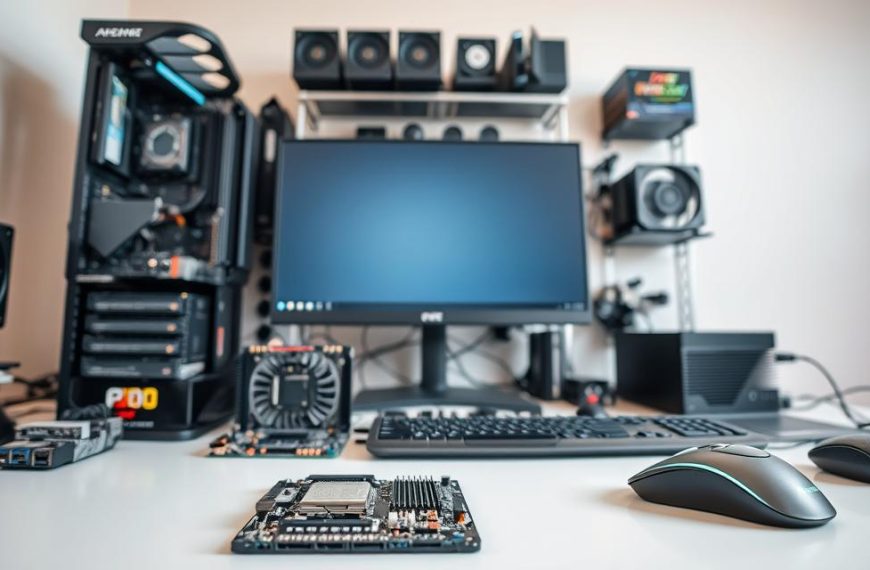
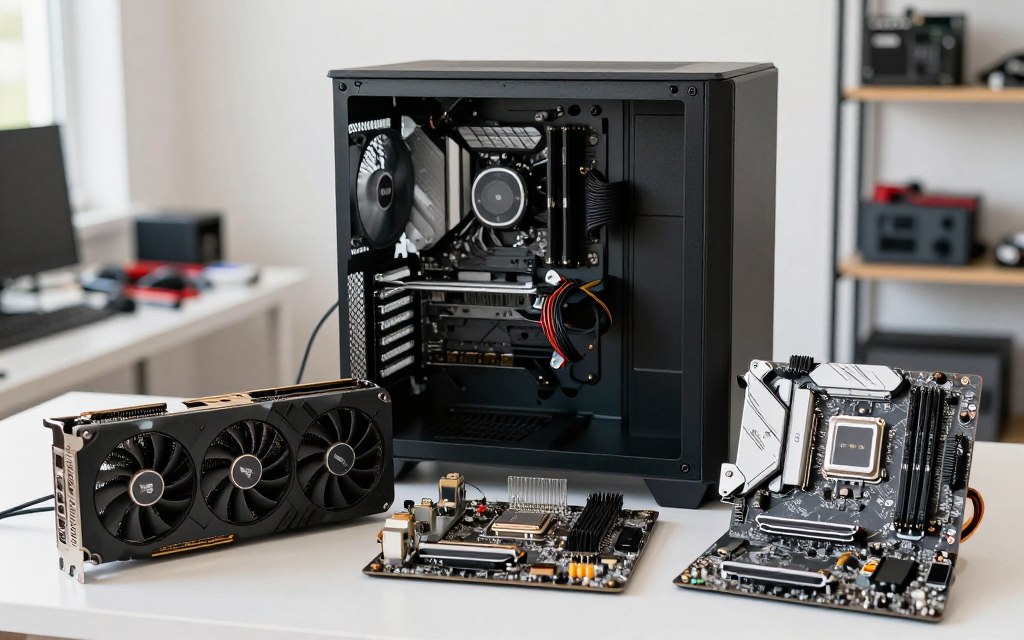

The CPU is usually the most important part of computer hardware for processing, but no single part can make a computer work alone. A desktop computer needs several parts to work as a system, and the right priority can change with your task.
Hardware means the physical parts of a computer that you can touch, whether they are inside or connected to the device. Software consists of instructions that tell hardware what to do. If your computer feels slow, knowing the difference can help you find a useful next step.
Consider what you use the machine for, such as writing, gaming, or editing video. Each task relies on parts in a different way, so one user’s best choice may not improve another user’s speed. The main components have distinct jobs, and their limits affect the experience in different ways.
Key Takeaways
- The CPU is the usual single answer when “most important” means processing.
- A computer needs other essential parts to function as a complete system.
- Different tasks can make different components the main limit on speed.
- Hardware is physical; software gives the hardware instructions.
- Knowing each part’s job helps you spot what may need attention.
That distinction between physical parts and software instructions sets up a closer look at the roles of the main components.
What Is the Most Important Part of Computer Hardware?
The CPU is the best single answer when “most important” means processing, but the answer depends on what you need the computer to do. Processing is only one part of a working computer.
The motherboard, RAM, storage, GPU, and PSU each have an essential job. A limit in any one of them can affect how the computer feels during a task.
The CPU is the strongest single answer for processing, but no essential component works alone.
When people ask what is the most important part of computer hardware and software, they are asking about two different things. The central processing unit (CPU) carries out software instructions, while software supplies those instructions.
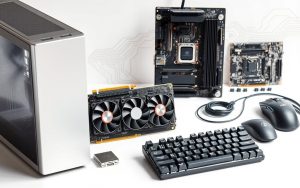
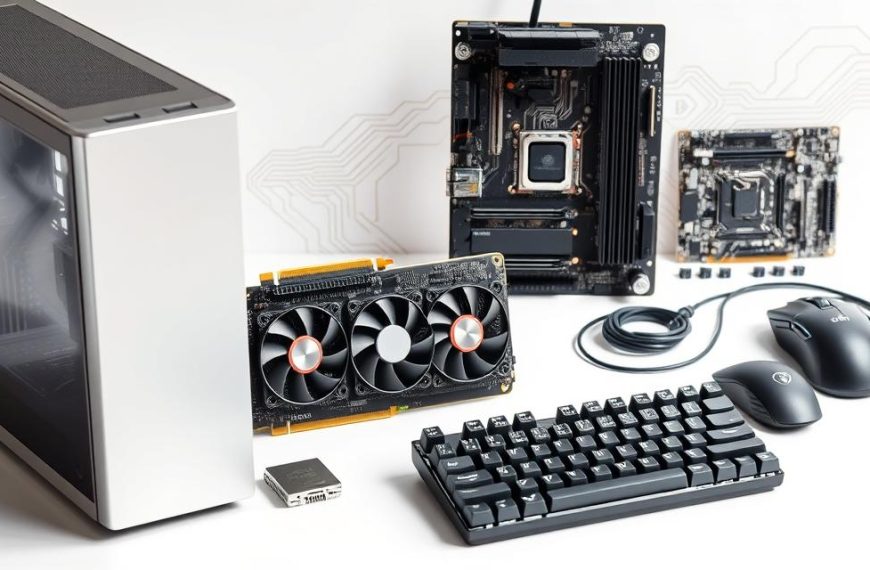
The motherboard is the main circuit board that links many components. RAM holds information for active tasks, and storage keeps files and programs. A graphics processing unit (GPU) handles graphics, while the PSU supplies usable power.
| Component | Main job | What a limitation affects | When its role is most noticeable |
|---|---|---|---|
| CPU | Processes instructions and calculations | Task completion and general response | Running apps or completing calculations |
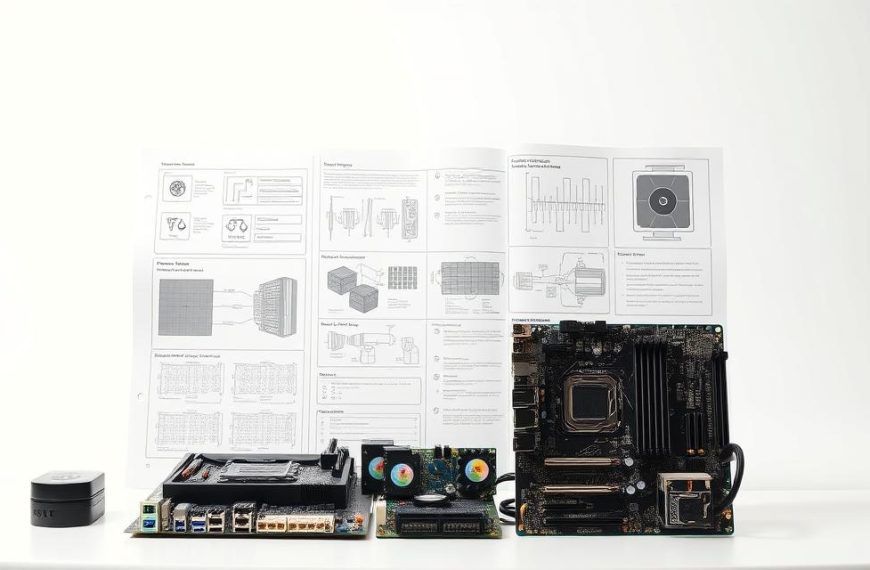
| Motherboard | Connects the computer’s parts | Which parts can connect or work together | Building or changing a system |
| RAM | Holds data for active programs | How many tasks can stay active smoothly | Keeping many apps open |
| Storage | Keeps files and programs | File access and available space | Starting the computer or opening files |
| GPU | Processes graphics for display | Image detail and graphics speed | Gaming or 3D work |
The question what is the most important part of computer hardware and their functions has no single answer for every user. The main part of a computer depends on whether you mean processing, connecting parts, or the source of a specific performance limit.
These different jobs fit together through the motherboard, which physically links many of the computer’s parts.
For a wider view, see this guide to computer hardware components and functions.
What Does the Motherboard Connect?
Open a desktop computer case and you will see several parts attached to one board: the motherboard. It provides connections for the CPU, memory, storage, and other hardware. Those links let the parts work as one computer.
The motherboard is the computer’s main circuit board, not a replacement for the parts it connects. Its slots and ports help determine which components a system can use.
How the motherboard links internal parts
A practical way to list the components of a computer is to start with the parts inside the case. An inventory may include the CPU, motherboard, RAM, storage drive, GPU, PSU, cooling parts, and input or output devices.
Some basic lists count four components of a computer: CPU, motherboard, RAM, and storage. A list of three components of a computer may instead use broader functions: processing, memory, and storage.
Those counts serve different purposes. The four-part list names specific hardware, while the three-part list groups jobs that a computer must perform.
Why desktop and laptop designs differ
Desktop components can often be replaced or upgraded one at a time. The computer case gives the parts room, and many connect through removable slots, cables, or sockets.
Laptop designs use less space. Some parts may be soldered to the motherboard, which can make repair or upgrades more limited than on a desktop.
There is no fixed answer to “What are the 30 most important parts of a computer?” Computers differ by size and installed devices. A desktop with a separate graphics card has parts that a compact laptop may not have.
Knowing what the board connects makes it easier to consider the CPU’s specific processing work.
How Does the CPU Process Instructions?
A software instruction moves from memory to the CPU, where the CPU reads it, works on it, and produces a result. This basic cycle helps explain the central processing unit’s job.
A CPU fetches, decodes, and executes instructions. It fetches an instruction from memory, decodes what the instruction asks, then carries it out.
From instruction to result
For example, a program may ask the CPU to add two numbers. The CPU fetches that instruction, works out the requested operation, and executes it. The result can then support the program’s next step.
CPU clock speed is measured in gigahertz (GHz). A 2.0 GHz clock represents two billion cycles per second, but a cycle is not always one completed instruction.
That means clock speed alone does not tell you how fast a computer will feel. A task may also depend on the CPU’s design, the number of cores, and the rest of the system.
Clock speed, cores, and heat
Multiple CPU cores let a computer work on more than one task at a time. The benefit depends on the task: some work can use several cores, while other work may rely more on one.
When comparing computers, check four CPU factors:
- Workload: identify the programs and tasks you will run.
- Clock speed: compare the stated rate in gigahertz.
- Core count: note how many cores can handle tasks.
- Cooling capacity: check whether the system can remove heat.
A CPU generates heat while it works. Fans or other cooling parts move that heat away, helping the CPU keep operating rather than overheating.
The CPU needs quick access to active information, which is where RAM comes in.
What Does RAM Do While a Computer Is Running?
A computer may slow down when you keep a browser, a document, and several other programs open. RAM matters because it gives active programs quick access to the information they are using. That working space supports current activity.
RAM holds information for programs while they run, rather than keeping files permanently. It is faster to access than an HDD or SSD, so the CPU can use active data without fetching it from a storage drive each time.
Think of RAM as a work surface. A browser can keep open tabs ready, while a document program holds changes you are making. Other active programs also use part of the available space.
More RAM can help when a computer handles many active tasks. If the computer has too little room for those tasks, it may feel less responsive as you switch between programs.
More RAM does not replace a faster CPU or storage drive. It helps with active work, but it cannot make every task faster when another part is the main limit.
RAM is volatile, which means its contents are erased when the computer is turned off. Anything you want to keep must be saved to a storage drive.
That difference separates temporary working data from files that remain after shutdown, leading to storage.
How Do HDDs and SSDs Store Files?
RAM holds active information for the computer’s current work; a storage drive keeps saved files for later. Saved files remain available when the computer is off, unless the drive is damaged.
HDDs store data on spinning magnetic platters, while SSDs use flash memory and have no moving parts. The two types of drive store files in different ways.
What happens inside an HDD
A hard disk drive (HDD) records data on magnetic platters that spin inside the drive. A moving read/write mechanism reaches the data on those platters.
This design has moving parts. An HDD is a common kind of disk drive, and its mechanical parts make it different from a solid state drive.
How an SSD differs
A solid-state drive (SSD) stores data in flash memory. It has no moving parts, and SSDs are generally faster than HDDs.
Because an SSD lacks moving parts, it is less exposed to mechanical failure than an HDD. That does not mean an SSD cannot fail or lose data.
An external storage drive can help you archive files or move them between devices. It can transfer information without a network connection.
| Type | How it stores or connects | Keeps files when unplugged | Common use |
|---|---|---|---|
| HDD | Magnetic data on spinning platters | Yes, unless damaged | Computer file storage |
| SSD | Flash memory with no moving parts | Yes, unless damaged | Computer file storage |
| External storage drive | Connects outside the computer by cable or port | Yes, unless damaged | Archiving or moving files |
Photos, video, and games saved on a drive still need to appear on screen. The GPU handles the work of rendering those graphics.
When Does a Computer Need a GPU?
Displaying a document takes less graphics work than rendering a detailed game scene. A graphics processing unit (GPU) handles graphical operations such as images and animation. The difference shows when visuals become complex.
A dedicated GPU matters most for graphics-heavy tasks, but everyday computing may not need one. Some computers use graphics processing built into the CPU, while others use a separate graphics card.
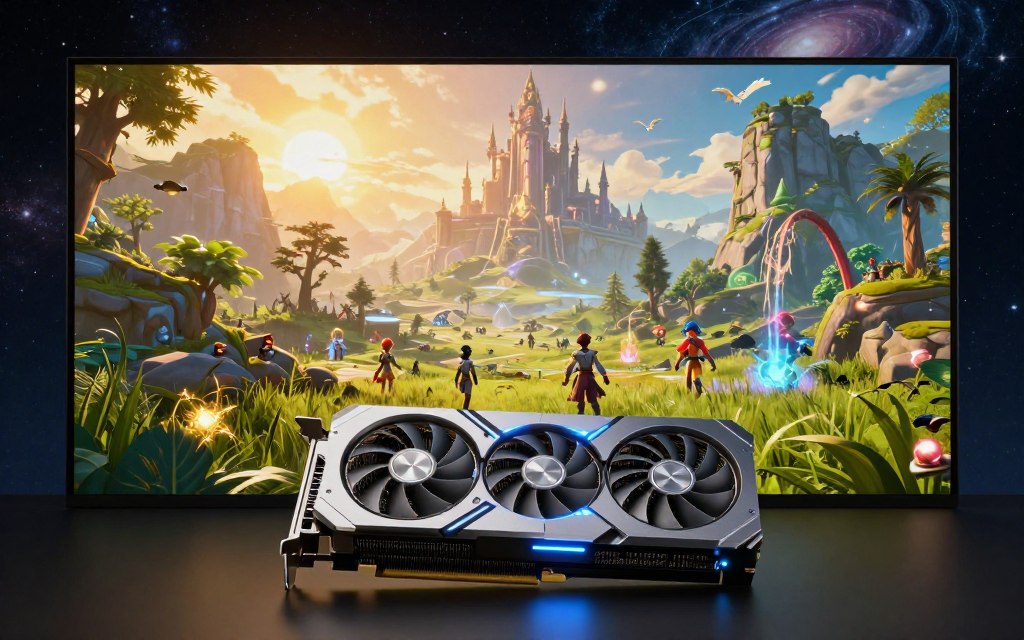
The GPU renders graphics for a display. Integrated graphics are part of the computer’s CPU package, while a dedicated GPU sits on a separate graphics card.
Gaming can place more demand on graphics hardware, especially when a game draws detailed scenes. 3D work and video editing may also rely heavily on graphics processing.
For writing, web browsing, and other everyday tasks, integrated graphics may be enough. A computer does not need a dedicated graphics card just because it has a monitor or plays video.
A GPU does not replace the CPU. The two parts handle different work, and a strong graphics card cannot make every processing task faster.
After considering graphics performance, look at the power and cooling that allow internal parts to operate.
How Do Power and Cooling Keep a Computer Running?
A computer may fail to turn on when its components do not receive usable power. A power supply unit (PSU) converts electricity from a wall outlet into the direct current that computer parts use. Usable power must reach the components.
The PSU converts and distributes power, while cooling carries heat away from components. Both functions help a computer run as intended.
What the power supply does
A desktop computer relies on power from a wall outlet. Its PSU changes that electricity into a form the computer’s hardware can use, then sends power to its parts.
A laptop can run from its battery, which supports portable use away from an outlet. When connected to power, the laptop can also draw electricity through its charging system.
How cooling protects components
Computer parts produce heat as they operate. Fans move air through the case, and liquid cooling systems can also carry heat away from components.
If cooling is not enough, a computer can overheat and operate poorly. Keep vents clear so heat can leave the system.
Use these four checks when a desktop has power or heat trouble:
- Confirm that power connections are secure.
- Check that fans can move air.
- Keep vents unobstructed.
- Match the PSU to the computer’s installed components.
Dependable internal operation still needs input and output devices, which let a person use the computer.
How Do the Parts Work Together in a Desktop Computer?
When you open and save a document, several desktop computer components work together. A keyboard sends your typing into the system, and the computer processes the input before showing or saving your work. The whole system makes the task possible.
A complete computer works through linked stages, from input to processing, storage, and output. The parts are not isolated from one another.
Follow a task through the system
Press a key, and the keyboard sends an input signal. The CPU handles the task, while RAM supports the active document and program. When you save, the computer writes the file to storage.
The computer case houses desktop components, such as the motherboard, CPU, memory, and storage. External peripherals connect to the computer but sit outside the case.
| Stage | Example component | What happens | Result for the user |
|---|---|---|---|
| Input | Keyboard | Sends typed words to the computer | Your text appears in the document |
| Processing | CPU | Handles the program’s instructions | The document responds to your action |
| Storage | SSD | Saves the document’s data | You can open the file later |
| Output | Monitor | Displays the open document | You can read and edit the text |
Input and output devices complete the setup
A mouse is another input device, and a monitor is an output device. A printer outputs information on paper, while a scanner inputs a paper image or text.
A useful answer to “4 main parts of a computer with examples” is CPU, motherboard, RAM, and storage. A five-part model often adds a GPU or PSU, depending on the teaching framework.
The count changes with the purpose of the list. Internal hardware works inside the computer, while peripherals such as keyboards, mice, printers, and monitors help you interact with it.
Once you see how the parts cooperate, you can investigate the one that may be limiting your computer.
For more detail on internal parts and peripherals, read this beginner’s guide to computer hardware.
Which Computer Part Should You Upgrade First?
Start by asking what your computer struggles to do, rather than choosing a part to buy. The best upgrade depends on your task and the symptom you notice. That evidence points toward a likely limit.
There is no universal first upgrade; identify the bottleneck before replacing hardware. A new part may not improve the experience if another component causes the slowdown.
Find the part limiting your actual workload before replacing a working component.
Use these four checks to narrow down the issue:
- Note whether slowness occurs with many open apps, graphics-heavy work, file loading, or startup.
- Check whether RAM, graphics, storage, or processing is the likely constraint.
- Confirm that the motherboard supports the part you are considering.
- Check that the PSU and cooling can support the change.
For example, a computer that slows down with many open apps may need more RAM. Slow file loading may point toward storage, while graphics-heavy work can place more demand on the GPU.
Startup delays can have more than one cause, so consider the task and the system’s behavior together. Replacing a working part without finding a bottleneck may not improve speed.
Use the symptom and compatibility checks to choose one informed next step. The CPU is the usual single answer for processing, but the right part to change depends on the problem you need to solve.
Conclusion
The CPU is the strongest single answer when “most important” means processing, but a working computer depends on its connected components. Each part contributes to a system that can handle tasks and keep files available.
Before changing hardware, name the task or symptom that matters most. A slow startup, difficulty keeping apps open, and weak graphics performance can point to different parts.
Check your computer’s task demands and the component most closely tied to the problem before choosing an upgrade.

 By
By
 By
By